
This checklist is for direct sales teams that take orders in person and need a dependable way to record sales, label shipments, and manage cash. It covers the supplies listed for the job, including product picks where one was provided and practical guidance where the slot is advice only. Start with your order flow: what you sell, how you record each transaction, and what must happen after the sale.

Get business pricing on office and shipping supplies
- Business-only prices and quantity discounts
- Tax-exempt purchasing
- Multiple users, one account, clear invoices
The sections follow the path from capturing an order to preparing it for fulfillment and handling payments. Each one explains why the slot matters, what to check before buying, and where the named pick may fit. Match each item to its role in your workflow instead of assuming that similarly named equipment performs the same task.
Use the “Look for” points as a shopping list, then verify the product’s specifications and compatibility with your own devices, forms, and sales process. Advice-only sections offer selection criteria rather than a specific product. Check the details before committing, especially for connection types, paper or label formats, and the way equipment will be carried or secured.
Portable receipt printer
A receipt or order record helps you confirm what was sold while the customer is still with you. For a portable setup, the main question is whether the named device actually matches the job: the pick is the Canon imageFORMULA R40II Receipt Edition Office Document Scanner. Its product name identifies it as a document scanner, so verify that it can produce the receipt or order output your process requires before treating it as a receipt printer. A scanner may support capturing paper records, but that is a different task from printing a customer copy.
A common buying mistake is relying on the category label or an assumed feature instead of checking the product’s specifications. Confirm what the device does, how it connects to your phone, tablet, or computer, and whether your sales software supports that workflow. If you need printed receipts on site, check for the required printing function and compatible paper; if you need to capture completed forms, confirm supported document sizes and how files are saved. Test the full handoff from order entry to the customer record, including what happens when connectivity is unavailable.
Portability also depends on your setup: consider the equipment’s footprint, power needs, and how it will travel with the rest of your supplies. Choose around the actual task and verify fit with your sales process before purchase.
What to look for:
- Confirm whether the device scans documents or prints receipts.
- Check compatibility with your sales software and operating system.
- Verify connection options for the device you bring to events.
- Match supported paper or document sizes to your workflow.
- Check power and carrying requirements for your setup.
Canon imageFORMULA R40II Receipt Edition Office Document Scanner

The Canon imageFORMULA R40II Receipt Edition is a document scanner designed for fast, double‑sided scanning of receipts, invoices and other office paperwork. It captures key data automatically and integrates directly with QuickBooks Online via the bundled CaptureOnTouch software.
Pros:
- Scans both sides simultaneously at up to 45 pages per minute
- Large 60‑sheet automatic feeder for batch scanning
- Built‑in QuickBooks Online integration with CaptureOnTouch software
- Easy USB‑C plug‑and‑play setup
Cons:
- Does not support TWAIN or ISIS drivers, limiting third‑party software use
- Heavy at 7.1 lb, may be less portable
- USB‑only connection; no network or wireless options
Best for: teams that need to capture paper order records, if specifications fit
Not ideal for: teams that need on-site receipt printing without a verified print function
Bottom line: Confirm the R40II’s actual function and compatibility before selecting it for a receipt-printing slot.
Carbonless order forms
Carbonless order forms can keep a paper record of a sale when a phone, tablet, or network connection is inconvenient. They are useful to consider for event days, backup procedures, or workflows where one copy stays with the business and another goes to the customer. This slot has no named product, so choose forms by the information your team must capture and how each copy will be used. Start with the fields: customer details, items, quantities, payment status, delivery instructions, and any needed signatures.
A frequent mistake is buying a form that looks familiar but does not match the actual order process. Make sure there is enough room for handwriting, product variations, notes, and totals, and confirm the number of copies suits your recordkeeping. Consider whether staff need pre-numbered forms or a clearly marked duplicate for fulfillment. If forms will be used with a clipboard or in a busy checkout area, check the page size and binding format against how the team writes and stores them. Keep customer-facing and office copies legible by planning where each copy goes immediately after completion.
Before ordering in quantity, try a sample with the pens your staff normally use and check that pressure transfers clearly through every copy. Confirm form size fits your storage and that your team has a consistent way to reconcile paper orders with digital records. Keep the process consistent so paper entries are not missed during later fulfillment.
What to look for:
- Choose fields that match your order and fulfillment process.
- Allow enough writing space for item details and customer notes.
- Select a copy count that supports customer and business records.
- Check page size, binding, and fit with clipboards or storage.
- Test legibility with the pens staff will use.
Barcode label printer
A barcode label printer can support product identification and order handling when your process uses barcodes. The listed pick is the Zebra ZP450 Direct Thermal Label Barcode Printer – USB, Serial & Paral. Its name indicates direct thermal printing and USB and serial connections, but confirm the complete model details and specifications before buying. The printer needs to fit the labels you intend to use and the barcode format your inventory or sales tools can read.
One common mistake is assuming that a printer described as a barcode printer will work with every label size, software package, or barcode workflow. Check supported media dimensions, roll or label loading, connection requirements, and compatibility with your computer and label software. Verify whether your setup needs a particular driver or operating system support. Test a sample label by printing it at the size you expect to use, then scan it with the device or system used in your workflow. Readable output matters: a label that prints but cannot be scanned does not solve the identification problem.
Think through where labels will be applied and whether the label stock suits that surface and handling. Confirm how staff will create and print labels during a busy sales or fulfillment period, and whether the printer can be positioned conveniently alongside other supplies. Make sure the full connection and software path works before standardizing on the pick.
What to look for:
- Verify the full model name and supported label dimensions.
- Confirm driver and operating-system compatibility.
- Check USB or serial connection needs against your setup.
- Match label stock to the surfaces and handling involved.
- Print and scan sample labels using your own workflow.
Zebra ZP450 Direct Thermal Label Barcode Printer – USB, Serial & Parallel
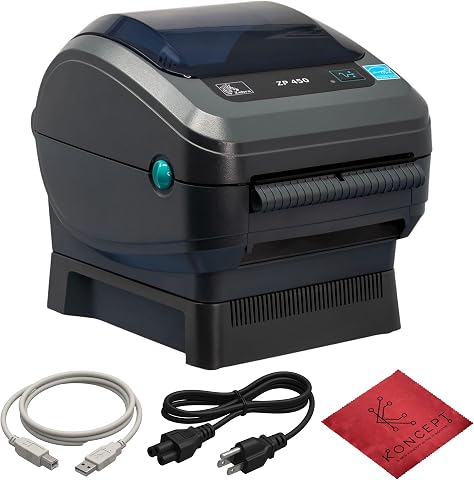
The Zebra ZP450 is a compact direct‑thermal label printer that delivers up to 5 inches per second at 203 dpi without the need for toner or ribbons. It offers plug‑and‑play connectivity via USB, serial and parallel ports, making it ideal for low‑volume shipping, office and retail environments.
Pros:
- Fast direct‑thermal printing at up to 5 ips
- No consumables required – toner and ribbon free
- Multiple connectivity options (USB, serial, parallel)
- Compact, rugged design suitable for busy workspaces
Cons:
- Prints only in monochrome; no color output
- Fixed media width limits label size flexibility
- No wireless or network connectivity
Best for: teams whose inventory or order process already uses barcodes
Not ideal for: teams that need a label workflow without confirmed software compatibility
Bottom line: Confirm media, connections, and scan readability with your own setup before choosing the ZP450.
Thermal shipping labels
Thermal shipping labels can make it easier to prepare orders for shipment, but the right choice depends on the printer and shipping workflow already in use. No product is named for this slot, so begin by checking the equipment you have and the label format your shipping process accepts. Match labels to the printer rather than choosing by appearance alone: verify width, length, roll or fanfold format, and any required core or gap dimensions against the printer documentation.
A common mistake is buying a large supply before confirming that labels feed correctly and the printed information remains readable. Try a small quantity first, print a sample shipping label, and check that barcodes scan and address text fits within the expected area. Confirm that the label material and adhesive suit the package surface and normal handling. If orders are prepared in different settings, consider how labels will be stored and protected from moisture, dust, or curling before use. Test a real shipment layout with the service and software used to create your labels.
Also verify whether the printer uses direct thermal labels or a different printing method, and check the media specifications for that exact device. Keep the label format aligned with the shipping platform and the people who pack orders, so labels can be applied consistently. A short compatibility check can prevent unusable stock and delays during fulfillment.
What to look for:
- Check label dimensions and format against the printer manual.
- Confirm the printer’s media type and loading requirements.
- Test a sample for barcode scanning and address readability.
- Match adhesive and material to the package surfaces used.
- Verify label layout with your shipping software and service.
Locking cash box
A locking cash box can give a team a designated place to hold cash during in-person sales. The pick is the Geelin 13 Inch Cash Register Drawer with Lockable Cover & Removable Tr; confirm the full product details because the supplied name is truncated. Check the drawer’s dimensions and internal layout against the bills, coins, and paperwork your team carries. A lockable cover may be useful for transport or storage, but make sure the product’s configuration suits the way you plan to use it.
A common mistake is choosing by exterior size alone. Check compartment arrangement, how cash is accessed, and whether the drawer can be opened or secured as needed during a sales shift. Confirm what is included and whether the product is a standalone cash box or intended to connect with a register system; do not assume compatibility from the word “drawer.” Fit the cash routine: staff should be able to separate denominations, make change, and return bills to the right place without slowing checkout.
Consider where the box will sit during sales and how it will be carried between locations. Verify that its dimensions work with your table, storage space, and transport setup, and decide who holds access to the key or locking mechanism. Keep cash handling procedures clear so the box supports orderly checkout rather than becoming a shared, untracked container.
What to look for:
- Confirm the full model details and what is included.
- Measure the box and compare with your sales setup.
- Check compartment layout for the cash and coins you handle.
- Verify whether it is standalone or compatible with a register.
- Plan access, locking, storage, and transport between events.
Geelin 13 Inch Cash Register Drawer with Lockable Cover & Removable Tray

The Geelin cash register drawer features a removable tray and lockable front cover for secure cash handling, plus an easy‑access front slot for quick transactions. It includes four bill slots, five coin compartments, and a smooth ball‑bearing roller system, and connects via a standard RJ11 interface compatible with most POS systems.
Pros:
- Removable cash tray with lockable cover for secure storage
- Front‑slot design allows quick cash insertion without opening the drawer
- Smooth ball‑bearing rollers provide easy opening and closing
- Compatible with most POS systems via RJ11 interface
Cons:
- Limited coin compartment size may not accommodate larger denominations
Best for: teams that handle cash at events and need a designated box
Not ideal for: teams that require a register-connected drawer without verified compatibility
Bottom line: Verify the complete listing, cash layout, and intended setup before selecting the Geelin drawer.
Portable card reader
A portable card reader supports taking card payments where customers place orders, so check that the product fits both your sales flow and the devices you use. The named pick is Square Register (2nd Generation). Confirm the exact configuration and requirements for your location, account, and payment workflow before choosing it. The product name alone does not establish portability, included components, or compatibility with every device, so check the current product specifications and setup guidance.
A common mistake is assuming that a payment device will work with an existing phone, tablet, point-of-sale account, or connectivity arrangement. Verify how it connects, what hardware is included, and whether your sales process can use it at the places you sell. Consider how staff will enter items, confirm totals, and provide a transaction record. Check the complete checkout path, including setup, network needs, and what staff should do if the preferred connection is unavailable.
For a mobile sales operation, think about how the device will be transported, powered, and positioned for customer use. Confirm that the form factor is suitable for your table or event setup and that the team can operate it comfortably. If you already use a sales system, verify compatibility before switching or adding equipment, and ensure that the order and payment records can be reconciled afterward.
What to look for:
- Verify exact configuration, included components, and payment requirements.
- Check connectivity and compatibility with your sales setup.
- Confirm the device works with your account and workflow.
- Consider power, carrying, and customer-facing placement.
- Plan how orders and payment records will be reconciled.
Square Register (2nd Generation)

The Square Register (2nd Generation) is a durable, all-in-one point-of-sale system featuring dual touchscreens, built-in POS software, and reliable hardware designed for busy retail environments. It supports fast checkout, multiple payment methods, and withstands everyday spills and dust, ensuring consistent performance during peak hours.
Pros:
- Dual responsive touchscreens for customer and cashier interaction
- Built-in POS software handling sales, inventory, and customer management
- Durable IP54-rated design resistant to spills and dust
- Fast processing and reliable connectivity for busy shifts
Cons:
- Requires corded power source, limiting portability
- Designed primarily for specific regions; hardware approval varies by country
- Price details not provided
Best for: teams seeking a Square-based checkout setup for in-person sales
Not ideal for: teams needing confirmed compatibility with an unverified device or account
Bottom line: Check the Square Register’s current requirements and fit with your sales workflow before buying.
Build the checklist in order of operational need: first make sure orders can be captured and reconciled, then confirm payment and cash handling, and then add barcode and shipping label supplies if your fulfillment process uses them. For every equipment pick, verify specifications and compatibility before purchasing; for advice-only items, test the form or label format with the tools already in your workflow. Prioritize the step that currently causes friction so each addition addresses a real task.
You do not need to adopt every item at once. Start with a clear process for recording each order, handling payment, and preparing any follow-up shipment, then add supplies as your sales routine calls for them. A little checking before setup helps staff work with confidence and keeps records easier to follow. Use this checklist as a practical starting point and tailor it to the way your team sells.