
To make your 4K webcam look more premium, focus on proper positioning, lighting, and organization. Keep your webcam at eye level and use adjustable mounts for the best framing. Use soft, diffused lighting like ring lights to eliminate shadows and create a flattering glow. Keep your background tidy and choose simple, professional decor or backdrops. Fine-tune your camera settings for sharpness and color, and add accessories like cable management and privacy covers. Stick around to discover more tips for a flawless setup.

Get business pricing on office and shipping supplies
- Business-only prices and quantity discounts
- Tax-exempt purchasing
- Multiple users, one account, clear invoices
Key Takeaways
- Position your webcam at eye level with adjustable mounts for a natural, professional perspective.
- Use soft, diffused lighting like ring lights to create even illumination and reduce shadows.
- Calibrate camera settings such as focus, exposure, and color for crisp, vibrant, and natural-looking video.
- Keep the background clean, simple, and well-organized with tasteful decor or professional backdrops.
- Regularly clean the lens and update webcam software to ensure sharpness and optimal performance.
As an affiliate, we earn on qualifying purchases.
How Your Setup Affects Your Webcam’s Professional Look
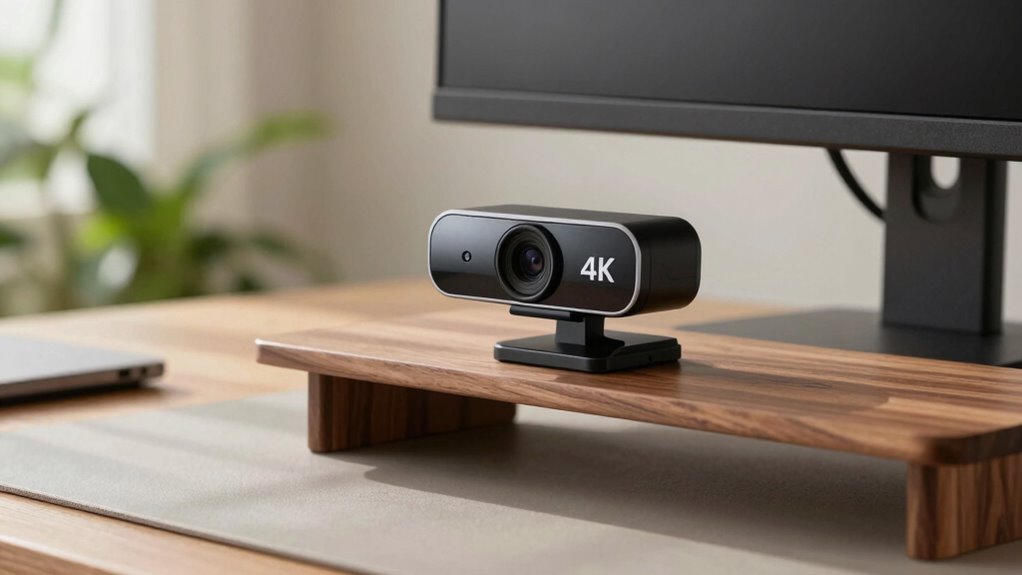
Your setup plays a crucial role in how professional your webcam appears on camera. Good camera ergonomics guarantee your webcam is positioned at eye level, creating a natural, engaging look that maintains viewer trust. Avoid awkward angles by adjusting your monitor height or using a stand, which makes your presentation more polished. Additionally, seamless audio integration enhances your overall professionalism. Clear, well-balanced sound keeps viewers focused on your message without distractions, complementing your visual setup. Proper lighting combined with a stable webcam position makes your image sharp and vibrant, reinforcing a premium appearance. Remember, an intentional, ergonomic setup shows you care about quality, making your on-camera presence more credible and confident. Small adjustments to camera placement and audio setup can considerably elevate your professional look. Furthermore, understanding digital concepts helps you optimize your entire streaming or recording environment for a truly polished presentation, ensuring a cohesive and high-quality overall visual experience. Incorporating ergonomic principles into your setup ensures long-term comfort and reduces fatigue during extended recordings or live sessions. Additionally, choosing the right vacuum systems can help keep your workspace tidy, minimizing distractions and maintaining a professional environment.
To further enhance your setup, paying attention to camera resolution can significantly improve the clarity and detail of your image, making it appear more premium.
As an affiliate, we earn on qualifying purchases.
Position Your Webcam for Flattering, Clear Framing
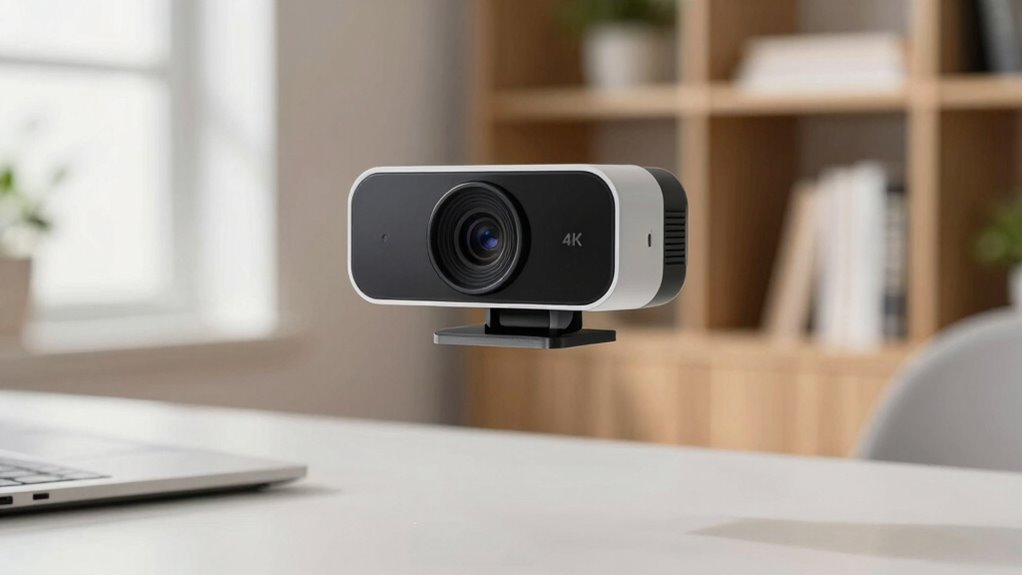
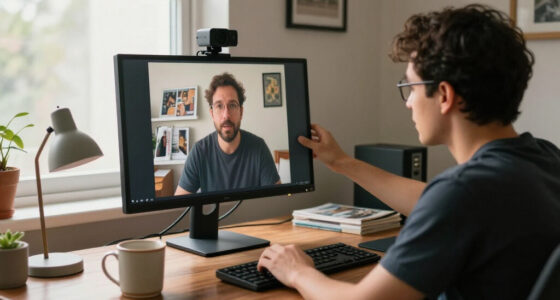
Positioning your webcam correctly is essential for achieving a flattering, clear frame that enhances your on-camera presence. Proper frame positioning guarantees your face is centered and well-lit, making you look confident and approachable. Adjust your camera angles so it’s eye level; this creates a natural, engaging perspective that flatters your features. Avoid placing the webcam too high or too low, as this can distort your appearance or create unflattering angles. Keep your background tidy and uncluttered within the frame to draw focus to you. Experiment with slight camera angle adjustments until your face is framed comfortably, with some space above your head and your shoulders visible. Effective frame positioning and thoughtful camera angles make your video look more polished and professional.
As an affiliate, we earn on qualifying purchases.
Use Lighting to Make Your Webcam Video Shine
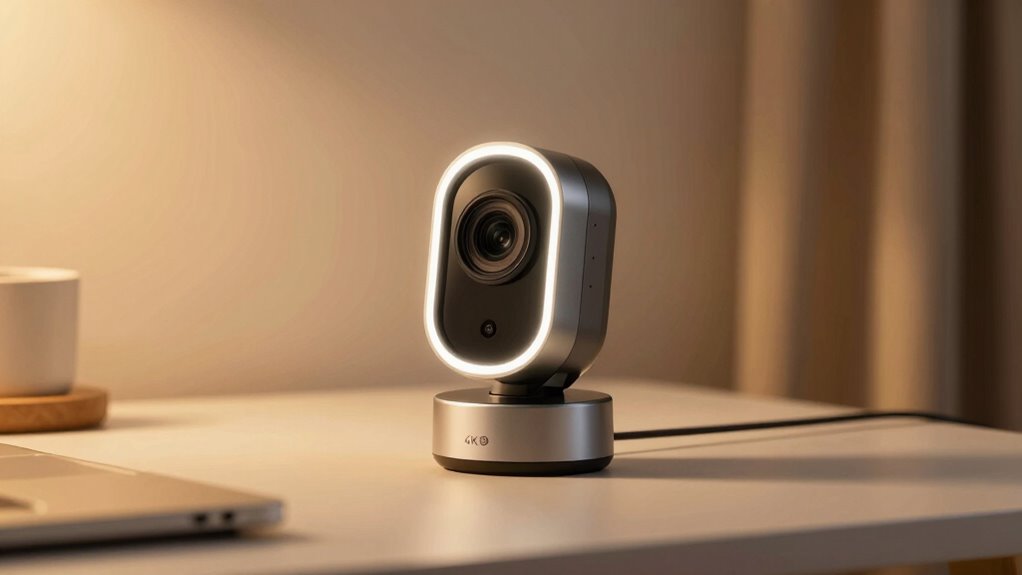
Good lighting can dramatically improve how your webcam video looks, making you appear more vibrant and professional. Using effective lighting techniques helps eliminate shadows and creates even, flattering illumination. Position your light sources at eye level and avoid harsh, direct lights that cause glare. Incorporate soft, diffused lighting to produce a natural glow. This not only enhances clarity but also aids in color correction, ensuring your skin tones appear accurate and lively. Adjust your lighting based on your environment to prevent color cast issues and maintain a consistent look. Proper lighting makes your 4K webcam footage appear more polished, reducing the need for digital enhancements. Additionally, understanding color correction techniques can help you fine-tune your video for a more professional appearance. Having the right lighting setup is essential for achieving a more premium, engaging video. With strategic lighting, your video will stand out as more premium, engaging viewers with a crisp, well-balanced image. To further improve your visual quality, consider experimenting with different lighting positions to find the most flattering angles. Using lighting angles effectively can help you maximize the benefits of your setup.
As an affiliate, we earn on qualifying purchases.
Organize Your Environment for a Clean, Polished Look
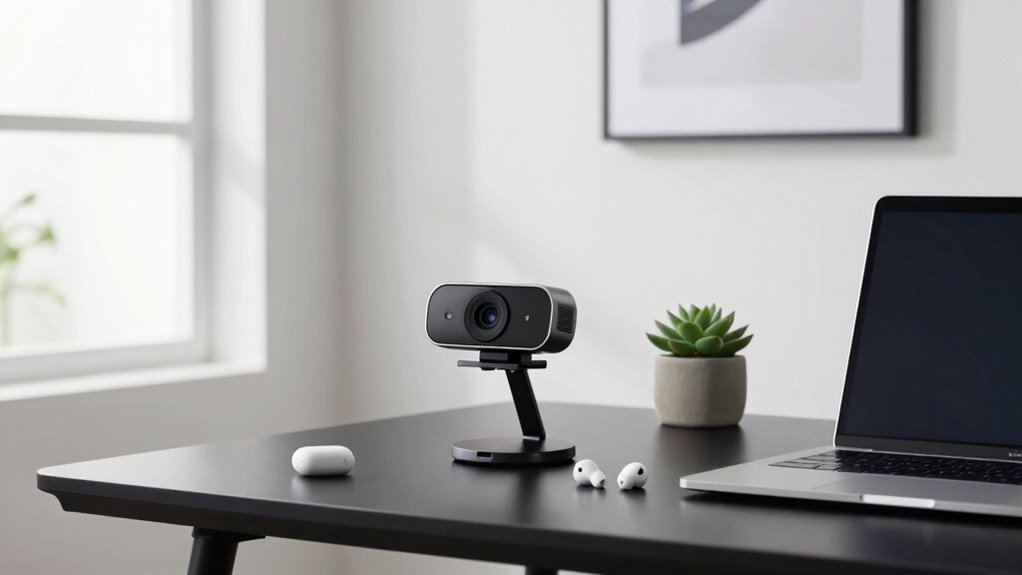
A cluttered or messy background can distract viewers and diminish the professional quality of your webcam video. To avoid this, focus on desk organization by clearing unnecessary items and keeping only essentials visible. A tidy workspace instantly looks more polished and intentional. Pay attention to your background decor—choose simple, tasteful elements that add personality without overwhelming the shot. Use shelves, plants, or subtle artwork to create visual interest while maintaining a clean look. Remember, the goal is to keep distractions at bay and guarantee your environment complements your professional image. Regularly tidy up your space to prevent clutter from accumulating. Incorporating environmental control techniques can further improve the overall quality of your video setup. Additionally, selecting appropriate lighting and camera angles can enhance the perception of a professional environment, making your webcam feed appear more premium. Keeping your surroundings minimalist design can help reinforce a sleek, refined appearance that resonates with viewers.
Choose Backgrounds That Make You Look More Professional
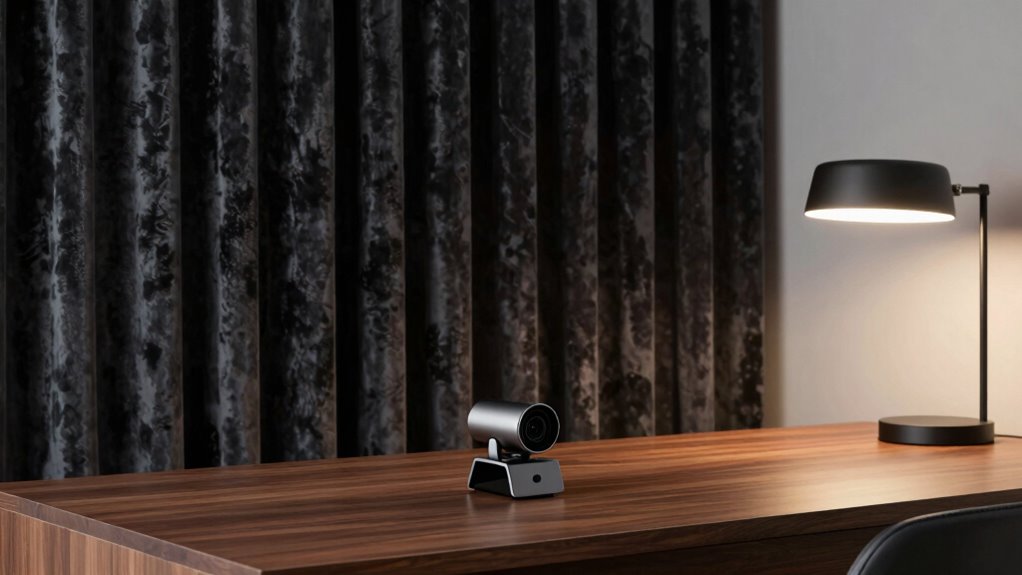
Choosing the right background is key to looking more professional on camera. Opt for solid colors, professional settings, and keep clutter out of sight to make a strong impression. These simple choices help your image come across as polished and credible. Additionally, consider lighting setup to enhance your overall video quality and ensure your background looks its best. A well-lit environment can also minimize distractions and improve the clarity of your image, making your overall presentation more professional. Incorporating knowledge about sound vibrations can also help create a calm and focused atmosphere, subtly influencing how viewers perceive your presentation quality.
Opt for Solid Colors
Opting for solid colors as your background instantly elevates your professional appearance on camera. A simple, uniform backdrop creates a clean look that highlights you without distractions. Focus on color contrast; choose a background that contrasts with your clothing to make you stand out, but avoid overly bright or neon shades that can be harsh on 4K cameras. When considering pattern choice, stick to minimal or no patterns—busy designs can appear distracting or pixelate with high-resolution webcams. Solid, muted tones like navy, gray, or beige work well because they’re neutral and keep the viewer’s attention on you. This approach guarantees your webcam captures crisp detail, making your setup look more polished and professional.
Use Professional Settings
Enhancing your background with professional settings instantly boosts your credibility and makes your on-camera presence more polished. Start by choosing a clean, well-lit space that reflects your professionalism. Proper camera placement is key—position your webcam at eye level to create a natural, engaging look. Avoid distracting backgrounds or clutter that can detract from your message. Instead, opt for a tidy, neutral backdrop that conveys seriousness. Improving audio quality also enhances the overall impression, so invest in a good microphone and minimize background noise. A professional setting not only elevates your visual appearance but also ensures your message comes across clearly and confidently. When your background, camera placement, and audio quality work together, your 4K webcam will truly look more premium. Additionally, using mount leveling kits can help ensure your camera is perfectly aligned for optimal framing. Proper camera setup is essential for achieving a polished, professional look.
Minimize Clutter Distractions
Cluttered backgrounds can distract viewers and undermine your professionalism on camera. To make your setup more polished, focus on minimizing distractions. Start with desk organization—keep only essential items within view, and tidy up loose papers or supplies. Effective cable management is also key; hide or route cables neatly to avoid a tangled look. Consider using a solid-colored or subtle background to keep the focus on you. Removing unnecessary clutter creates a cleaner, more professional appearance. You’ll appear more confident and credible, especially on a high-resolution 4K webcam. Remember, simplicity is powerful—less visual noise means your message stands out. A tidy background shows you’re organized and serious about your work, elevating your overall on-camera presence. Incorporating a professional backdrop can further enhance your visual appeal and make your setup look more intentional.
Adjust Your Webcam Settings for Sharp, Cinematic Video
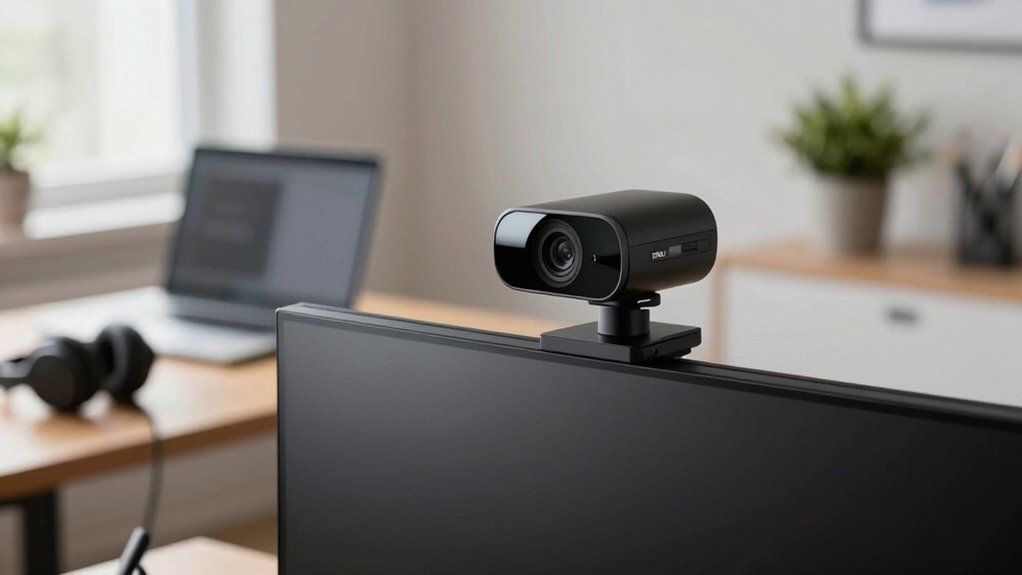
You can make your webcam footage look more cinematic by fine-tuning focus and exposure to get crisp details and balanced brightness. Adjust your color settings to guarantee skin tones are natural and colors pop without looking oversaturated. Small tweaks here make a big difference in creating sharp, professional-looking video. Incorporating these adjustments can also help prevent burnout by making your setup feel more engaging and satisfying to use. Paying attention to arcade game aesthetics and lighting can further enhance the visual quality of your video, making it more appealing and immersive. Experimenting with webcam calibration settings can help you achieve a more consistent and polished look across different lighting conditions.
Fine-Tune Focus and Exposure
Adjusting your webcam’s focus and exposure is essential for achieving a sharp, cinematic look. Proper camera calibration ensures your image remains clear and well-defined, while lens cleaning removes dust or smudges that can distort your picture. To fine-tune these settings, start by manually adjusting focus for crisp details, especially if your webcam has auto-focus issues. Next, tweak exposure levels to avoid overexposed highlights or underexposed shadows, creating a balanced image. Keep in mind, small adjustments make a big difference. Incorporating lighting techniques can also help enhance your background’s visual appeal, contributing to a more professional appearance.
Adjust Color Settings Properly
Once your focus and exposure are dialed in, fine-tuning your color settings can truly elevate the cinematic quality of your webcam footage. Start with color calibration to guarantee hues look natural and balanced. Adjust saturation to enhance vibrancy without overshooting, which can make your video appear unnatural. Use the following table as a quick guide:
| Setting | Tip | Effect |
|---|---|---|
| Color Calibration | Match skin tones and environment | Natural, balanced look |
| Saturation Adjustment | Increase slightly for richness | Vibrant, cinematic feel |
| Brightness/Contrast | Fine-tune for clarity | Sharp, professional appearance |
Add Accessories That Elevate Your Webcam Setup
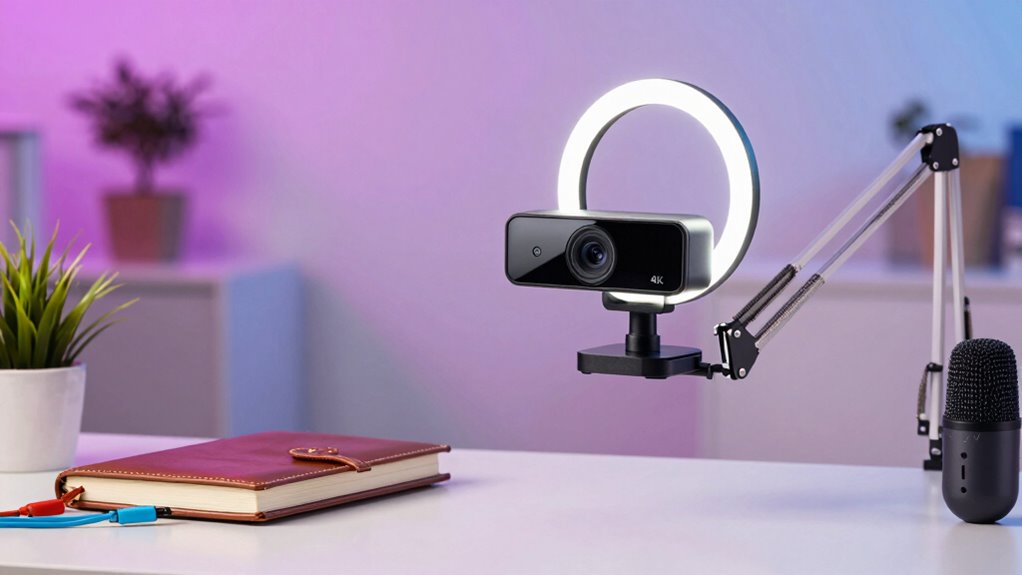
Adding accessories to your webcam setup can dramatically enhance its appearance and functionality. Investing in lighting accessories guarantees your video looks bright and professional, even in dim environments. Mounting solutions, like adjustable arms or tripods, give you more control over your camera’s position and stability. These upgrades not only improve image quality but also create a sleek, polished look. Consider adding a ring light for even illumination, a versatile mount for flexible positioning, a webcam cover for privacy, or a cable management kit to keep your workspace tidy. These accessories make your setup more adaptable and visually appealing, elevating your overall streaming or recording experience effortlessly.
Troubleshoot Common Webcam Setup Mistakes
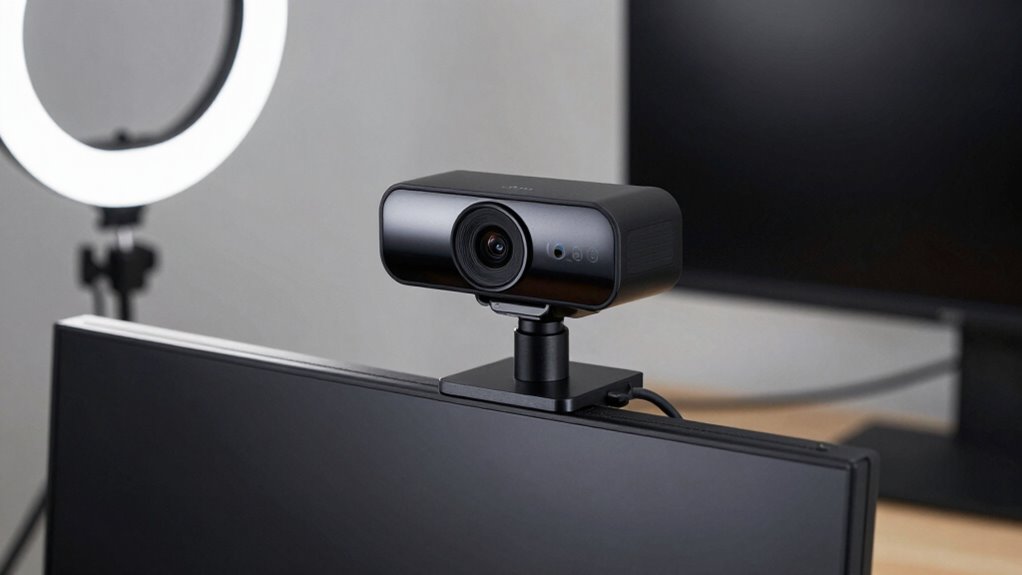
Even with a well-equipped setup, common webcam mistakes can undermine your image quality and professionalism. Make certain your webcam is properly positioned at eye level to avoid awkward angles. Check your internet stability; a weak connection causes lag and reduced video quality. Test your audio clarity by using a quality microphone and eliminating background noise—poor audio can distract viewers even if your video looks sharp. Update your webcam drivers and software regularly to prevent glitches. Adjust lighting to avoid shadows or glare, which can compromise image quality. Avoid using multiple applications that strain your bandwidth, and close unnecessary programs. These simple troubleshooting steps help you maximize your webcam’s performance, ensuring your video is crisp, clear, and professional.
Frequently Asked Questions
How Can I Improve Webcam Sound Quality Alongside the Setup?
To improve your webcam sound quality, focus on enhancing audio clarity by using a dedicated microphone rather than built-in options. Position the microphone close to your mouth and slightly off to the side to minimize breathing noises. Adjust the gain settings to avoid distortion, and consider using noise reduction software. These steps help make certain of crisp, clear audio that matches your premium-looking setup, making your overall presentation more professional.
What Are the Best Camera Angles for Different Professional Scenarios?
You want to nail the perfect camera angles for different professional scenarios? Think of it as hitting two birds with one stone. For interviews, position your camera at eye level, enhancing your credibility with good lighting techniques that highlight your features. For presentations, angle the camera slightly above to project confidence, and keep backgrounds clean or professional, choosing backgrounds that support your message. Proper angles, lighting, and backgrounds make all the difference.
How Often Should I Update or Upgrade My Webcam and Accessories?
You should update or upgrade your webcam and accessories whenever you notice declining camera quality or compatibility issues. Regular camera maintenance helps guarantee peak performance, so check for firmware updates and clean your lens. Keep an eye on accessory compatibility, especially when new software or hardware updates roll out. Upgrading every couple of years or when your current setup no longer meets your needs keeps your video quality sharp and professional.
Can Custom Backgrounds Enhance My Webcam’s Premium Appearance?
Imagine your webcam as a window to your world—custom backgrounds act like a polished frame, elevating its premium feel. Background customization adds a splash of personality, transforming a plain scene into an aesthetic masterpiece. It’s an easy way to boost your webcam’s aesthetic enhancement, making your video presence more engaging and professional. With the right backdrop, you turn a simple camera feed into a mesmerizing visual experience.
What Software Tools Can Optimize My Webcam’s Video Quality?
To optimize your webcam’s video quality, you should use editing software like OBS Studio or XSplit to fine-tune settings. Incorporate good lighting techniques, such as soft, diffused light, to reduce shadows and enhance clarity. Adjust brightness and contrast within your software to improve image sharpness. Combining proper lighting with editing tools guarantees your 4K webcam looks more professional, vibrant, and polished for any video call or stream.
Conclusion
By mastering these setup tricks, you’ll transform your webcam into a window of professionalism, much like a painter perfects their canvas. Remember, the right lighting, positioning, and environment can elevate your presence, making you seem as confident as a star on stage. Just as a well-tuned orchestra creates harmony, your refined setup guarantees every video you produce resonates with clarity and polish—proof that detail makes all the difference.
Halloween Picks
halloween
As an affiliate, we earn on qualifying purchases.