

Use this guide to choose a business automation tool and set up one repeatable workflow, such as routing a web inquiry to the right employee or sending an order update. It is written for small-business owners and team members with basic spreadsheet and web-app skills, not software developers. You will map the current process, compare tools, build a limited version, test it, and check its results. Plan for about 2-4 hours to configure and test the workflow, then monitor it for several days before expanding it.

Get office and shipping supplies delivered free — and shop member deals
- Fast, free delivery on millions of items
- Access to Prime Big Deal Days deals on October 6–7
- Prime Video, Amazon Music and more included
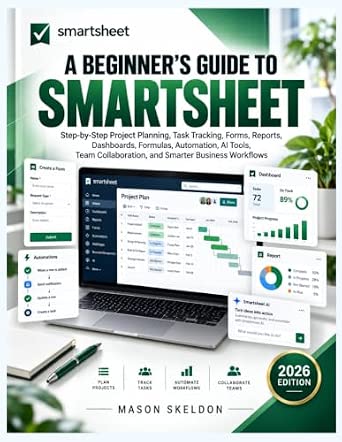
A Beginner’s Guide to Smartsheet: Project Planning, Task Tracking, and Automation
- ✔ Format: Beginner’s guide
- ✔ Primary platform: Smartsheet
- ✔ Project topics: Project planning and task tracking
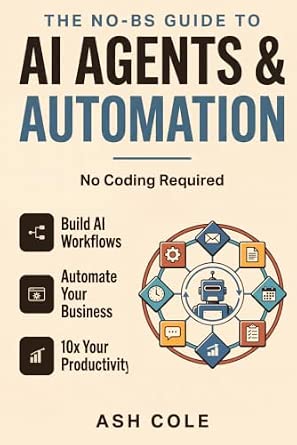
The No-BS Guide to AI Agents & Automation: Build AI Workflows, Automate Your Business, and 10x Your Productivity — No Coding Requ…
- ✔ Format: Guide in The No-BS AI Playbooks
- ✔ Primary topic: AI agents and automation
- ✔ Business focus: Automating business tasks

AI Made Practical: A Beginner’s Guide to ChatGPT and Other AI Tools
- ✔ Format: Beginner’s guide
- ✔ Primary topics: ChatGPT and other AI tools
- ✔ Audience: Beginners
Difficulty: Beginner | Time: 2-4 hours for a first workflow, plus several days of monitoring
What You’ll Need
Tools & Materials:
- A computer and reliable internet access
- Access to the business apps involved in the process, with permission to connect them
- A document or spreadsheet for mapping the workflow and recording test results
- A business automation service or built-in app automation feature
- A test record or test account that does not contain sensitive customer information
Knowledge:
- Basic use of the business apps in the workflow
- Ability to describe when the process starts, what information it uses, and what should happen next
- Knowledge of who owns the process and who can approve changes
Ask an administrator to confirm app access, data-handling rules, and any approval requirements before connecting systems. Check subscription limits, available connectors, and whether the tools support the actions you need. Do not use real customer or payment data for initial testing. Set aside time after launch to review failures and confirm that the new workflow has not replaced a necessary human decision.
A Beginner’s Guide to Smartsheet: Project Planning, Task Tracking, and Automation
A Beginner’s Guide to Smartsheet is our best overall pick because its stated subject matter connects automation to the broader work that businesses already need to coordinate. Rather than approaching automation only through AI, it covers project planning, task tracking, forms, reports, and dashboards, alongside formulas, collaboration, and business workflows. That makes it the strongest fit here for readers who want to understand how recurring work can be organized and monitored, not just how to generate an isolated automated task.Compared with The No-BS Guide to AI Agents & Automation, this title appears more centered on structured project operations and team visibility; the other book is more explicitly focused on AI agents and no-code productivity workflows. It also has a wider stated workflow scope than AI Made Practical, whose description emphasizes prompting and everyday AI use. That breadth is useful, but it does not prove the book provides detailed implementation steps for every listed topic. The supplied information gives no chapter list, integrations, or edition specifics, so we should treat coverage as a guide to the book’s focus rather than a guarantee of depth.This is the most sensible starting point when we want automation to support repeatable work across a team, especially work managed through plans, requests, and reporting. It is less compelling if our only goal is to learn AI agents or general-purpose ChatGPT prompting. Readers should also remember that a guide can explain a platform and its workflows, but it cannot confirm whether a particular business’s processes or software setup are supported.
Pros:
- Connects automation with project planning and task tracking.
- Includes forms, reports, and dashboards in its stated scope.
- Covers formulas, AI tools, collaboration, and business workflows.
- Offers the broadest stated team-operations perspective in this comparison.
Cons:
- The supplied description does not establish the depth of instruction for each topic.
- Its Smartsheet focus may not suit readers looking for a platform-neutral guide.
- No edition, chapter list, or specific integrations were provided for verification.
Best for: Readers who want to learn Smartsheet-oriented project planning and connect task tracking, forms, reporting, collaboration, and automation in team workflows.
Not ideal for: Readers seeking a focused guide to AI agents, a platform-neutral automation manual, or verified instructions for a particular integration or software edition.
Bottom line: We rank this first for readers who want automation framed around organized team projects, with the caveat that the supplied details do not verify implementation depth.
“We rank this first for readers who want automation framed around organized team projects, with the caveat that the supplied details do not verify implementation depth.”
The No-BS Guide to AI Agents & Automation: Build AI Workflows, Automate Your Business, and 10x Your Productivity — No Coding Requ…
If our priority is specifically AI-led business automation without coding, this title is the most direct match in the lineup. Its stated focus is building AI workflows and using agents to automate business tasks, with productivity as the intended benefit. That gives it a sharper automation promise than AI Made Practical, which introduces several AI tools and practical prompting but is not described as a dedicated AI-agent playbook.Its narrower focus is also the reason we place it behind the Smartsheet guide overall. Smartsheet offers more stated context for team operations—including project tracking, forms, reports, and dashboards—whereas this book is oriented toward AI workflows. For a reader who already has a clear business task in mind and wants to explore no-code automation, that focus may be an advantage. For someone still working out how to organize team projects or manage recurring requests, the Smartsheet guide appears to cover more of the surrounding process.We need to be cautious about the product information: the supplied details explicitly do not provide review or coverage content that verifies how the book teaches its subject. The title signals an approachable, no-coding angle, but the available description does not name tools, examples, integrations, or a curriculum. We should therefore treat this as a promising focused option, not a confirmed implementation manual. It is best for readers comfortable checking the contents before purchase and least suitable for buyers who need established, platform-specific instructions or detailed evidence about what is covered.
Pros:
- Directly addresses AI workflows and business automation.
- Is explicitly aimed at readers without coding experience.
- Frames automation around business tasks and productivity.
- Has a more focused AI-agent emphasis than the other two guides.
Cons:
- The supplied information does not verify the book’s detailed coverage.
- No specific AI tools, integrations, or examples are identified in the description.
- It offers less stated project-planning and team-reporting context than the Smartsheet guide.
Best for: Readers with little or no coding experience who want a focused introduction to AI agents and business-task workflows.
Not ideal for: Readers who need verified tool-by-tool instructions, project-management guidance, or a clearly documented chapter-by-chapter curriculum.
Bottom line: We recommend it as the most targeted no-code AI automation option, provided readers verify that its actual contents match their tools and needs.
“We recommend it as the most targeted no-code AI automation option, provided readers verify that its actual contents match their tools and needs.”
AI Made Practical: A Beginner’s Guide to ChatGPT and Other AI Tools
AI Made Practical is the gentlest entry point for readers who want to understand ChatGPT and other AI tools before committing to a more specialized automation approach. Its stated topics include writing better prompts, everyday automation, and responsible AI use. That combination gives newcomers a way to think about both the opportunities and limits of AI, while the other books make narrower promises around either Smartsheet or AI-agent workflows.Compared with The No-BS Guide to AI Agents & Automation, this guide sounds broader and more introductory: it covers multiple AI tools rather than presenting AI agents as the central subject. Compared with the Smartsheet guide, it has less stated emphasis on team structures, project tracking, dashboards, or business reporting. That makes it useful when we are still learning how prompting and AI fit into everyday work, but a weaker choice when we already need to map a repeatable business process into a coordinated workflow.The inclusion of responsible AI use is a meaningful distinction because automation decisions involve more than saving time; readers also need to consider appropriate use and oversight. Still, the supplied description does not name particular tools beyond ChatGPT, explain the depth of its automation instruction, or verify specific exercises. We should see it as a practical orientation to AI rather than a substitute for a dedicated operations or automation manual. It ranks third for this roundup because its business automation coverage appears less central, even though it may be the best first read for a complete AI beginner.
Pros:
- Designed as an approachable guide for beginners.
- Covers ChatGPT and other AI tools rather than one named tool alone.
- Includes prompting and everyday automation topics.
- Addresses responsible AI use alongside practical applications.
Cons:
- Business automation appears less central than in the AI-agent guide.
- The supplied description does not specify named tools beyond ChatGPT.
- No detailed workflow examples or implementation scope were provided.
Best for: Beginners who want to learn prompting and everyday uses of ChatGPT and other AI tools, with responsible use included.
Not ideal for: Readers who need detailed Smartsheet project workflows or a focused, verified guide to building AI-agent automation.
Bottom line: We would choose this as a first step into practical AI, but not as our main reference for structured business process automation.
“We would choose this as a first step into practical AI, but not as our main reference for structured business process automation.”
As an Amazon Associate we earn from qualifying purchases.
Before You Start
Choose a process that happens often, follows clear rules, and has a low cost of failure. Good first candidates include copying approved form details into a task list, notifying a team when a shared inbox receives a message, or sending a confirmation after a completed booking. Avoid starting with payroll, refunds, legal approvals, account deletion, or decisions that require judgment. Write down the current manual steps before changing anything, and keep the existing process available until the automation passes testing.
Automation tools use different terms, but a workflow usually has a trigger, conditions, and actions. A trigger starts the workflow, such as a new form submission. Conditions filter which records qualify. Actions perform work, such as creating a task or sending a notification. A workflow can save time, but it can also repeat an error quickly, so restrict its scope during setup.
Step-by-Step Instructions
Step 1: Choose one repetitive process
List recurring tasks that your team performs manually. For each task, note how often it occurs, how long it takes, who performs it, and what goes wrong when it is delayed or entered incorrectly. Select one process with stable rules and a clear outcome. Describe the outcome in one sentence, such as: “When an approved contact form arrives, create a sales task with the contact details and notify the assigned representative.”
Tip: Prefer a process that is frequent but not high-risk. Leave exceptions that need judgment with a person.
Check: You can name the process owner, the expected input, and the intended result in a single, specific description.
Step 2: Map the current workflow
Write down each manual action in its actual order, starting with the event that begins the process. Record the app used, the information passed between apps, any decisions or conditions, and the person responsible at each point. Mark steps that are optional, steps that require approval, and exceptions such as missing contact details. Ask the process owner to check the map before you build anything.
Tip: Do not automate a confusing process as written. Resolve unclear ownership, duplicate entry, and inconsistent rules first.
Check: The process map shows a start event, the expected sequence of actions, exceptions, and a final result.
Step 3: Set a scope and a safety limit
Choose exactly which records the first version will handle. Set a rule that excludes incomplete, duplicate, or unapproved records when needed. Decide what the workflow may do automatically and where it must stop for a person. Identify a way to pause the workflow, and record who will review errors and approve changes.
Tip: For a workflow that sends messages, creates financial records, or changes customer data, begin with a human approval step or a test-only mode.
Check: You have written down the workflow’s boundaries, the pause method, and the person responsible for reviewing exceptions.
Step 4: Compare suitable automation tools
Check whether the apps already offer native automation before selecting a separate service. Compare candidate tools against your mapped workflow: supported connectors, required trigger and actions, setup difficulty, access controls, audit history, error alerts, subscription limits, and total cost. Confirm that the plan allows the expected volume and that the tool can handle required data fields. Ask your administrator to review security and privacy requirements if the workflow includes business or customer information.
Tip: A long connector list does not prove that a tool supports the exact action you need. Check the connector’s available triggers and actions, and test access before committing.
Check: You have selected a tool that supports every required app and action within the business’s access, policy, and budget limits.
Step 5: Create a limited workflow
Connect the required apps using an approved account, then create a workflow with one trigger and only the actions in your process map. Add conditions for the records that qualify. Match fields carefully, such as mapping the form’s email field to the task’s email field, and give the workflow a name that states its purpose. Leave optional actions out of the first version.
Tip: Grant only the permissions the workflow needs. Avoid connecting a personal account that may lose access when an employee leaves.
Check: The workflow editor shows the intended trigger, conditions, and actions, with each required field mapped to the correct destination.
Step 6: Test normal and exception cases
Keep the workflow disabled or in test mode while you submit a sample record. Check that the trigger fires once, conditions accept the correct record, and each action produces the expected result. Test at least one incomplete or excluded record and confirm that it does not continue through the workflow. Review the source and destination records side by side for missing, altered, or duplicated values. Correct the configuration and repeat the tests after each change.
Tip: Use fictional test details, and do not send test messages to customers. Check whether the tool has a test mode, draft mode, or action preview.
Check: Normal test records reach the intended result once, excluded records stop, and the activity history shows no unexplained errors.
Step 7: Launch with a small group
Ask the process owner to approve the test results, then enable the workflow for the limited scope you defined. Tell affected staff what it does, what remains manual, and how to report a problem. For the first few days, compare a sample of automated records with the original source and keep the previous manual method available as a fallback.
Tip: Do not expand the workflow to every team or record type on launch day. A small release makes errors easier to contain.
Check: The approved workflow runs on real eligible records, while staff can identify its owner and pause or report it if needed.
Step 8: Review performance and maintain the workflow
Check the automation’s run history and error alerts on a schedule during the initial monitoring period. Record successful runs, failures, duplicates, time saved, and any manual corrections. Investigate each failure before changing the workflow. Recheck the process whenever an app changes its fields, permissions, or subscription plan. Keep a brief note of the workflow’s purpose, owner, connected apps, and pause instructions.
Tip: A workflow that ran correctly last month may fail after a form or app update. Treat its history and alerts as part of normal process ownership.
Check: The owner can confirm that records are handled correctly, failures are visible, and staff know how to pause the workflow.
Common Mistakes to Avoid
- Automating a process before its rules and ownership are clear. — Map the existing steps, confirm exceptions with the process owner, and fix inconsistent rules before building.
- Choosing a tool based only on price or the number of advertised integrations. — Verify the exact trigger, actions, field mappings, permissions, and usage limits needed for your workflow.
- Launching a workflow that sends messages or changes records without testing edge cases. — Test normal, incomplete, and excluded records with fictional data; keep approval or a manual checkpoint for high-impact actions.
- Leaving the automation unmonitored after launch. — Assign an owner, enable failure alerts, review run history, and check results more often during the first several days.
Troubleshooting
Problem: The workflow does not start when a new record appears.
Solution: Confirm that the correct account is connected and authorized, check that the trigger watches the right form, folder, or status, and review the tool’s run history. Reconnect the app only through an approved account if its access has expired.
Problem: The workflow runs, but fields are blank or contain the wrong values.
Solution: Open the action’s field mappings and compare each destination field with the source record. Check for renamed fields, incompatible formats, and optional fields that were left empty, then rerun a test record.
Problem: The same record creates duplicate tasks or notifications.
Solution: Pause the workflow if duplicates could affect customers or operations. Check whether the trigger fires on both creation and later updates, then add a condition or duplicate check so the action runs only once per eligible record.
Problem: The workflow fails after working previously.
Solution: Review the latest error and app activity for changed passwords, expired permissions, renamed fields, or service outages. Restore access or update the mapping, test with sample data, and resume only after the run completes correctly.
What Success Looks Like
The automation handles the records within its stated scope, sends or creates the expected result once, and leaves excluded records untouched. Test runs and live run history contain no unexplained errors, required fields match their sources, and the process owner can review failures and pause the workflow. Staff understand which steps are automated and which still require human review. The workflow also has a named owner and a documented check schedule.
Next Steps
After the initial monitoring period, compare time spent on the process before and after automation, and note error rates and manual corrections. Keep the workflow if it meets its intended outcome without creating extra risk or cleanup work. Update its notes when the process, connected apps, or owner changes. Only after the first workflow proves reliable should you select another repetitive task; map and test that task separately rather than adding unrelated actions to the existing workflow.
Frequently Asked Questions
Which business process should I automate first?
Choose a frequent, rule-based task with a clear start and result, such as routing a completed form to a team queue. Avoid processes involving sensitive decisions, financial transfers, or frequent exceptions until you have more experience and suitable approvals.
Do I need to know how to code?
Most basic app-to-app workflows can be configured through a visual builder, but you still need to understand triggers, conditions, field mapping, permissions, and testing. Custom code may be required for unsupported systems or complex rules.
Should I use a built-in automation feature or a separate tool?
Use a built-in feature when it supports all required actions and provides adequate access controls and run history. Consider a separate tool when the workflow needs to connect apps that cannot exchange the required information directly. Check costs and data policies for either option.
How do I prevent an automation from sending duplicate messages?
Test whether the trigger fires on both new records and updates. Add conditions or a processed-status field so each eligible record is handled once, then test repeated updates before enabling customer-facing actions.
When should I pause or remove a workflow?
Pause it if it creates incorrect records, sends unintended messages, or fails in a way that could affect customers or operations. Review the run history, correct the cause, test again, and get the process owner’s approval before resuming. Remove it when the process or connected apps are no longer used, after documenting any records or tasks that need manual handling.
Halloween Picks
halloween
As an affiliate, we earn on qualifying purchases.